Free WordPress Migration? TVCNet Has You Covered (Or You Can DIY)
Why pay someone to move your WordPress site when TVCNet will do it for free? Of course, if you’d rather handle it yourself, we’ve got you covered with a quick, step-by-step Migrate Guru guide that makes the process fast and stress-free.
If you’re moving your site to TVCNet Website Hosting fast and secure hosting, there’s an easy and low-stress way to do it using Migrate Guru. While TVCNet offers free migration services, some people prefer to migrate their sites themselves or may wish to create a backup on a separate hosting account for safekeeping (never a bad idea!).
✅ So here are our recommended Step-by-Step Migration Instructions
1. Create a New Staging Site at TVCNet
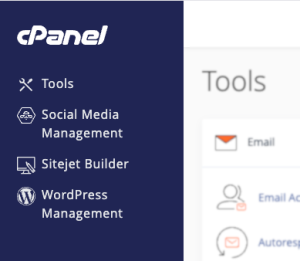
Start fresh. Log into your TVCNet account, then log into your cPanel Account, and click WordPress Manager to create a new WordPress site there. This will give you a clean install for migration.
Tip: Within cPanel, you have a few options for staging; you may wish to set up either the actual domain name (e.g., my_domain.com), a staging site (e.g., staging.my_domain.com), or your new WordPress installation within a subdirectory (e.g., my_domain.com/staging).
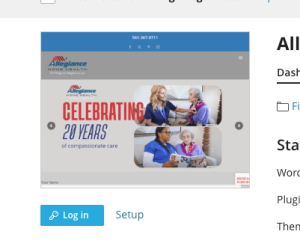
2. Use the “Login” button within WordPress Manager to log into the New Site
TVCNet’s WordPress Manager includes a “Login” feature. Click it to log into the new WordPress install. From there, install and activate the Migrate Guru plugin.
3. Next, install Migrate Guru on the “Live” Site
Log in to the site you want to move (e.g., at the other web host). Install and activate Migrate Guru. This may require entering your email address, checking a Blogvault agreement checkbox, and then clicking “Migrate.“
4. Start the Migration…
Within Migrate Guru on the live site, select the cPanel migration option. You’ll be asked to enter:
Enter the Migration Key (get this from the staging site)
Click “Migrate” to begin
If all goes well with the connection, a screen will appear verifying the WordPress installation you are migrating to, and the migration will begin. When completed, click the “Visit Site” button to view your staging site online.
Note: As a general rule of thumb, each 1 GB of website size may take up to 1 hour to migrate. A 2 GB website may take 2 hours, and so on.
5. Verify the Migrated Site on TVCNet
Once the migration completes, verify that all is loading on the staging site web server.
Alternately, within your WordPress Manager, click the “Refresh” button (shown above). This will display the website as it appears locally.
Tip: Be sure to deactivate and remove Migrate Guru when you’re done on both sites. Then double-check that your performance/security plugins are working without error within your staging site.
6. Making the Site Live
Depending on whether you set up the actual domain name on the new server, a staging site domain name, or a subdirectory, the steps to set up and point the live domain to the new location can be somewhat complicated. If you are not sure how to do this, please feel free to contact us for assistance.
Quality Google searches aren’t failing you due to AI Overviews. Google has simply stopped providing easy, free traffic to generic sites. The professionals who succeed now are those who view their website as a long-term brand builder.
Boost your site’s speed with TVCNet. From LiteSpeed cache automation to cPanel support, we provide the best website hosting for high-performance results.