
Spam Protect Quarantine Security Changes
Spam Protect may require two-step verification for email quarantine access. Learn how to log in, secure your account, and protect legitimate emails.
We understand that nobody likes change, especially with one of our most loved services, Spam Protect.
In September, the security configuration for our Spam Protect service was updated to require two-factor authentication (also known as two-step verification). If you don’t regularly log into your Spam Protect account, you may never see the new setting. Below is a brief summary of the security change, along with instructions on how to log in using the “Retrieve Log-in Link” button on the Spam Protect login page.
To better secure your account against hackers, your email quarantine service now requires two-step verification to log in.
We understand that this additional step takes a little extra time and may seem unnecessary. And yes, we’ve had many conversations with folks asking why we need to secure “junk email.” While most email in quarantine is junk, some legitimate emails also arrive there. Without better controls, they could be accessed using the old login method. Two-step verification is now required to help improve email security for everyone.
Why the extra step matters
Access to quarantine isn’t harmless. If a hacker were to get in, they could set up filters to silently hold all incoming mail—blocking password-reset emails, two-factor (2FA) codes, and other important messages before you ever see them. That interception could be used to break into other services tied to your email account. Requiring two-step verification helps prevent this kind of misuse and protects more than just the quarantine itself.
If you encounter issues while checking your quarantine, or if your login is not working, we recommend the following:
1. Log in at https://www.spamprotect.us/.

Click the “Retrieve Log-in Link” button. Then enter your domain or email address.
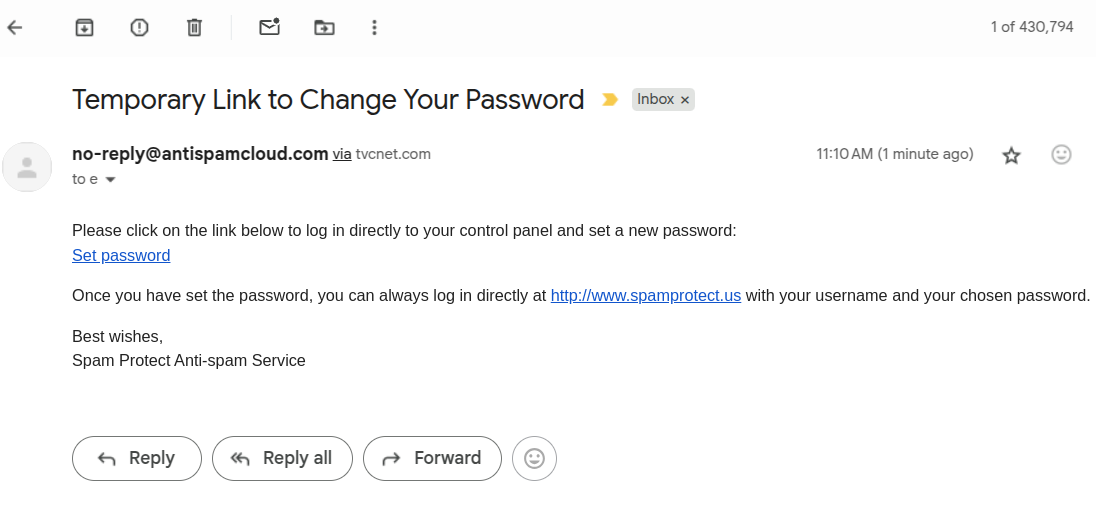
2. When the email titled “Temporary Link to Change Your Password” arrives, click the “Set password” link to log in.
3. For added security, update the Notification section on the settings page to: “Notify me when my account is accessed from a new IP address.”
4. If you haven’t already, enable Two-Step Authentication while you’re logged in so your device is ready the next time verification is required.
 Let us know if you have any other questions!
Friendly Reminder
Every spam filter needs a little training—after all, one person’s junk is another’s important message. If you’re still seeing too many bad emails slip through, please reach out. We’ll help fine-tune your settings and get it sorted today.
Other Spam Protect Related Links
Did you know TVCNet offers one of the lowest-cost email spam filtering services in the world?
Learn how to quickly filter emails managed through your Spam Protect service at TVCNet. Watch the video


